
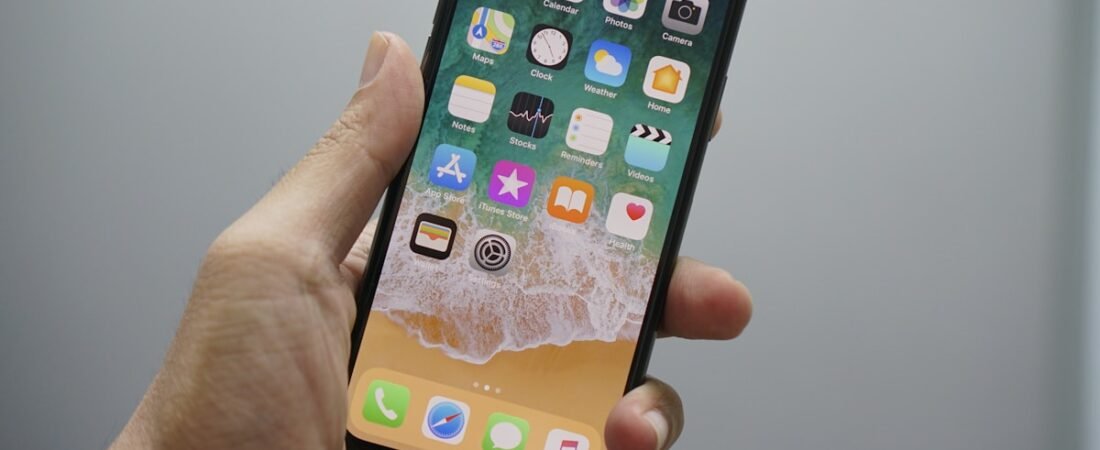
Unlock Your iPhone’s Full Potential
Your iPhone is capable of far more than you might realize. Apple has packed iOS with powerful features that most users never discover. Whether you’re on iPhone 15 or the latest iPhone 18, these tips will help you work faster, save battery, and get more from your device.
Hidden Features You’re Probably Not Using
1. Back Tap Gestures
Go to Settings > Accessibility > Touch > Back Tap and assign actions to double-tap and triple-tap on the back of your phone. Popular choices include taking screenshots, launching the camera, or turning on the flashlight — all without touching the screen.
2. Custom Focus Modes
Beyond Do Not Disturb, iOS lets you create custom Focus modes for different situations. Set up a “Work” mode that only allows work-related notifications, a “Sleep” mode that dims everything, or a “Driving” mode that auto-replies to texts.
3. Live Text in Camera
Your camera can read text in photos. Point it at a sign, menu, document, or whiteboard, and iOS will let you copy the text directly. This works in real-time and also on photos in your library.
4. Visual Look Up
Take a photo of a plant, animal, landmark, or artwork, and iOS can identify it. Swipe up on the photo and tap the info icon to see what your iPhone recognizes.
Battery Life Tips That Actually Work
5. Optimize Charging
Go to Settings > Battery > Battery Health & Charging and enable “Optimized Battery Charging.” Your iPhone learns your daily routine and delays charging past 80% until you need it, reducing battery wear.
6. Reduce Screen Brightness Intelligently
Enable Auto-Brightness (Settings > Accessibility > Display & Text Size) and reduce your screen timeout to 30 seconds. These two changes alone can add 1-2 hours of battery life.
7. Background App Refresh
Go to Settings > General > Background App Refresh and turn it off for apps that don’t need real-time updates. Social media apps are the biggest battery drains when running in the background.
Privacy and Security
8. App Tracking Transparency
iOS requires apps to ask permission before tracking you across other apps and websites. Go to Settings > Privacy & Security > Tracking and review which apps have permission. Most should be set to “Ask App Not to Track.”
9. Hide My Email
With iCloud+, you can create random email addresses that forward to your real inbox. Use this for newsletters, online shopping, and any service you don’t fully trust. Go to Settings > Apple ID > iCloud > Hide My Email.
10. Safety Check
Go to Settings > Privacy & Security > Safety Check to quickly review and reset who has access to your location, photos, and other data. This is especially useful if you’re concerned about personal safety.
Productivity Power Moves
11. Text Replacement
Set up shortcuts for phrases you type frequently. Go to Settings > General > Keyboard > Text Replacement. For example, set “addr” to expand into your full address, or “eml” to expand into your email.
12. Quick Notes from Anywhere
Swipe from the bottom-right corner to create a Quick Note from any app. This captures a link to where you were, so you can jump back later. Works especially well with Safari and Apple Maps.
13. Scan Documents with Your Camera
Open the Notes app, tap the camera icon, and select “Scan Documents.” Your iPhone will automatically detect edges, adjust perspective, and create a clean PDF scan — no scanner needed.
Camera Tips
14. Burst Mode
Hold the volume-up button while in the Camera app to take rapid-fire burst photos. Perfect for capturing action shots, pets, or kids who won’t sit still.
15. ProRAW and ProRes
If you have an iPhone 15 Pro or later, enable ProRAW (for photos) and ProRes (for video) in Settings > Camera > Formats. These capture significantly more data for editing, though files are much larger.
16. Cinematic Mode
Available on iPhone 13 and later, Cinematic Mode creates professional-looking depth-of-field effects in video. The focus automatically follows subjects, and you can adjust the focus point after recording.
Accessibility Features Everyone Should Know
17. Sound Recognition
Your iPhone can listen for specific sounds — doorbells, fire alarms, baby cries, glass breaking — and notify you. Go to Settings > Accessibility > Sound Recognition. Originally designed for hearing-impaired users, it’s useful for everyone.
18. Magnifier
The Magnifier app (pre-installed) turns your camera into a powerful magnifying glass with adjustable zoom, flash, and filters. Find it in your App Library or add it to Control Center.
The Bottom Line
Your iPhone is one of the most powerful computers you own. Spending 30 minutes exploring these settings and features will make your daily experience significantly better — and you’ll wonder how you lived without them.